


What Are OWN3D Pro Alerts?
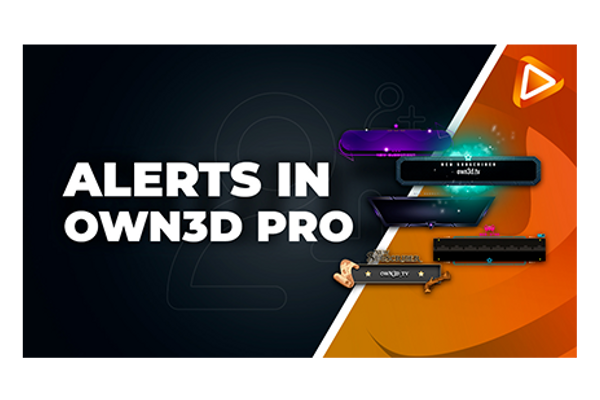
OWN3D Pro alerts are ready-to-use, fully customizable notifications that appear live on your stream whenever a significant event occurs, such as when someone follows your channel, subscribes, donates, sends a raid, or becomes a member. It’s an easy way to react to the action and show your viewers that you notice and appreciate them, even while you’re focused on the game or chat.
They work with Twitch, YouTube, and Kick. You can use them with all major broadcasting tools, including OBS Studio, Streamlabs, XSplit, and any software that supports browser sources. The OWN3D Pro alert system is designed to support all platforms simultaneously, so if you're streaming to multiple platforms at once, you only need a single alert source to trigger alerts across all of them. Of course, if you're only streaming on one platform, that's perfectly fine too.
You can start with free alerts included in your account as soon as you register, or upgrade to access premium designs through the Stream Pass. Either way, it only takes a few minutes to set them up and start streaming.
How to Set Up OWN3D Pro Alerts
Let’s walk through the entire setup process from start to finish. You'll also find a short video below that gives you a quick overview of how it all works.
1. Sign Up and Log In
Head to OWN3D Pro and create your free account. Once you're in, go to your dashboard and find the Alerts tab.
2. Create an Alert Set
In the Alerts tab of your OWN3D Pro dashboard, you’ll see a list of all your existing alert sets. If this is your first time here and you don’t have any yet, no problem: just click the "Create new alert set" button to get started.

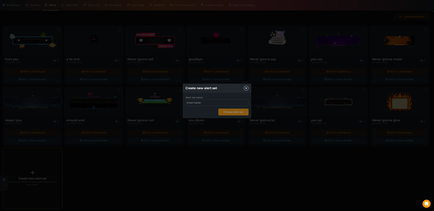
1/4 First, you’ll be asked to give your new alert set a name. This helps keep things organized, especially if you create different sets for different stream styles, events, or platforms.
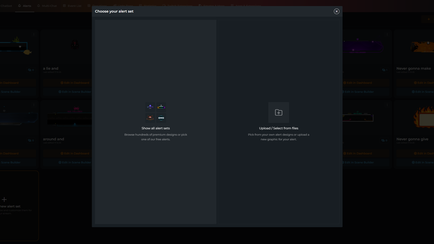

2/4 After naming your set, a pop-up window will appear, allowing you to choose how to create your alerts. You have two options:
Browse free and premium designs from the OWN3D Pro library
Upload your own custom graphics and sounds
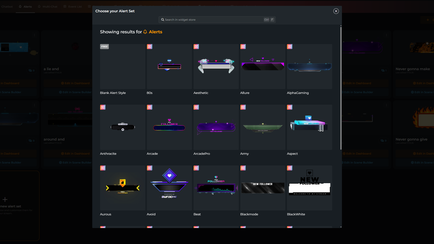

3/4 For this guide, we’ll select a pre-made design from the library. Pick one that fits your vibe, whether that’s clean and minimal or bold and catchy.


4/4 Once selected, OWN3D Pro will automatically generate a complete alert set for all supported platforms: Twitch, YouTube, Kick, and the OWN3D donation alert. It includes all the essentials, such as follower, subscriber, donation, and raid alerts.
After your set is created, you can decide where you’d like to edit it. While it’s fully functional and ready to be added to your broadcasting tool right away, you also have the option to customize it in detail.
Whether you want to adjust the visuals, fine-tune the timing, or match the style to your overall branding, everything is fully up to you.
You can either:
Use the dashboard editor for a focused, tab-based editing experience
Or you can add it directly to a scene, allowing you to edit and position your alerts in the Scene Builder with a live preview of how everything looks in your layout.
Both options provide you with full creative control, so choose whichever feels right for you.
3. Customize Your Alerts
You can fully customize your alert set to match your stream’s style and personality. OWN3D Pro gives you two easy ways to do this: using the Scene Builder or the dashboard editor.
Option 1: Customize in the Scene Builder
The Scene Builder allows you to edit alerts directly within your streaming scene. You can instantly see how they appear on your stream and adjust their position to fit your layout.


1/7 Click “Edit in Scene Builder” to add your new alert set to your scene.


2/7 Choose a scene or create a new one.

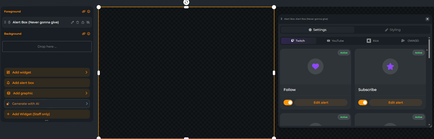
3/7 Click on any alert you want to edit, for example, the follower alert.
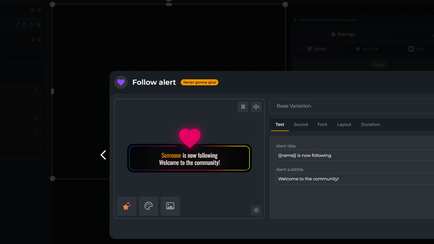

4/7 On the right side, you’ll see tabs like Text, Sound, Layout, Duration, and Font. Make changes directly in the Scene Builder and see the results live in the preview window. Change the default message, adjust the sound volume, pick a different animation style, or tweak the alert duration. It’s up to you.
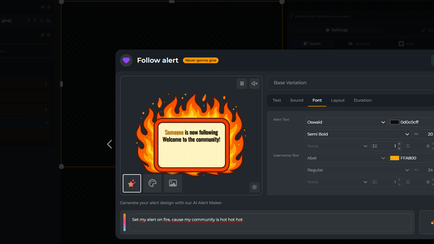
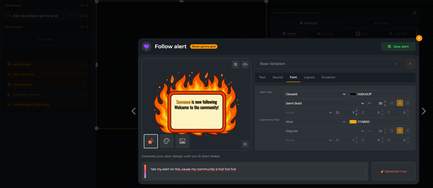
5/7 Want to try something new? Choose the stars icon to create with AI. Describe what you want, and let it generate a custom alert for you. Heads up: The AI Alert Maker is still in beta, and we're constantly working to improve it.

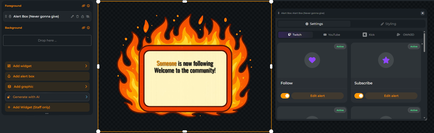
6/7 Once you're happy with your changes, click Save. Use the Test alert function to preview how it will look in your scene.
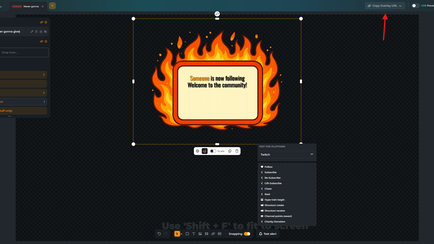

7/7 Once you're happy with your setup, hit save and copy the Overlay URL from the top. You’ll need this link to add the alerts to your broadcasting tool later on.
Option 2: Customize in the dashboard
Prefer a bigger view? Try the dashboard editor.


1/7 Open your alert set in the dashboard.
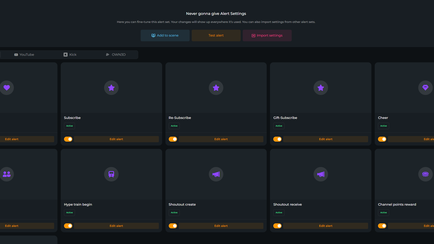

2/7 Here, you can see all alerts and the possibility to add them to a scene, test your alerts, or import settings from other alerts. Now, click on the alert you want to modify.


3/7 Go through the customization tabs and buttons one by one to edit your alert:
Image – Change or upload a different graphic
Color – Match the alert color to your branding
Text – Customize the message viewers will see
Sound – Choose a different sound effect or mute it completely. Add TTS for several alerts.
Font and Size – Control how your message looks
Layout and Duration – Adjust position and how long the alert stays on screen
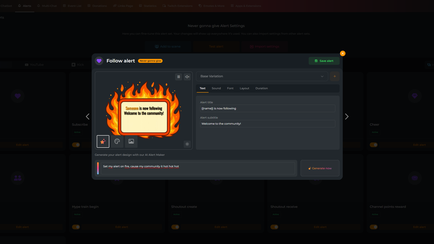
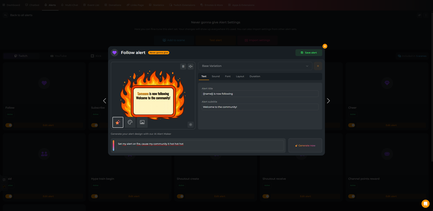
4/7 Try out the AI Alert Maker if you want a completely custom graphic. When you're done, click Save alert.


5/7 Click Import settings to copy settings from another alert set.


6/7 Use Add to scene to apply the alert set to a scene in your Scene Builder.

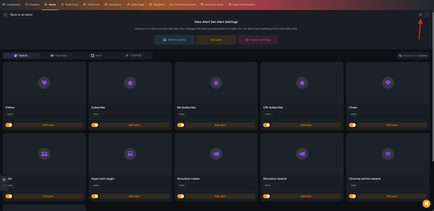
7/7 If you prefer to use the alert set as a single browser source, you’ll find the browser source link in the top right corner. This is the URL you’ll need to add to your broadcasting tool.
4. Add Your Alerts to OBS Studio or Other Tools
OWN3D Pro alerts are added to your stream as browser sources. This makes them compatible with all major broadcasting tools such as OBS Studio, Streamlabs, and others. In this tutorial, we’ll show you how to add them in OBS. The process works similarly in other tools as well.
To add them in OBS Studio:


1/9 Open OBS and go to the scene where you want to add the alerts.


2/9 Click the + icon under Sources and choose Browser.


3/9 Name the source (for example, "OWN3D Alerts")

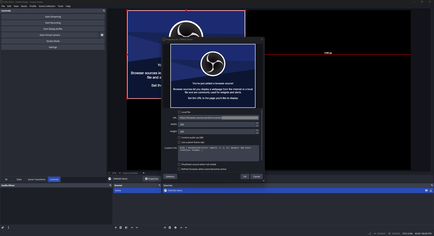
4/9 Paste the alert URL from your OWN3D Pro alerts/scene into the URL field.


5/9 Set the resolution. If you use a Scene Builder link, a resolution of 1920 x 1080 is recommended. If you use the single browser source link from your alert set, keep the resolution at 800 x 600.


6/9 If you want to control the audio, hit the box “Control audio via OBS”. Click OK if done.


7/9 If you can’t hear your alerts, make sure to activate monitoring. Right-click on your audio mixer > Advanced audio properties.


8/9 Activate Audio Monitoring > Monitor and Output. Now you and your viewers will hear your new alerts.


9/9 Your alerts are now part of your OBS scene. When you go live, they’ll show up automatically when triggered.
5. Test Before You Stream
In OWN3D Pro, you can use the "Test alert" button to make sure everything is working correctly. Keep an eye on your broadcasting tool to check that the visuals, sounds, and timing all come together just the way you want.
This is your last step before hitting “Go Live” with your new alerts.
Bonus Features You Should Know
AI Alert Maker: Want something unique but don’t have design skills? Just describe what you imagine, and the AI will create a matching alert graphic for you. No uploading or additional tools are needed; it’s all built in. The feature is currently in beta, so you might see small improvements and updates as we continue to develop it.
Import Settings: If you’ve already customized one alert set and want the same layout or sound settings in another set, you don’t have to redo everything. Simply import the settings and maintain consistent alerts.
Assign Alert Sets to Specific Scenes: Streaming different types of content? You can assign different alert sets to different scenes. Whether it's your “Just Chatting” overlay, your gameplay layout, or a special event stream, each scene can have its own custom alert style. This is especially useful for seasonal themes, such as Halloween or Christmas, where you may want your alerts to match the mood of the stream.
Vertical and Horizontal Layout Support: Streaming in vertical format on YouTube Shorts? OWN3D Pro alerts adjust to both vertical and horizontal layouts, keeping your setup platform-ready at all times.
Final Thoughts
Stream alerts may seem like a minor detail, but they can significantly impact the overall feel of your stream. They help you turn support from your viewers into real moments of connection, making your stream more engaging, more alive, and more personal.
With OWN3D Pro, setting up and customizing alerts is simple and creative. Whether you're streaming for fun or building a growing community, alerts are a powerful way to show your personality and make every viewer feel seen.
Take the time to set things up in a way that feels right for you. Every follow, every sub, every raid deserves to be noticed. And with the right alerts, your stream will feel like home, for you and for your community.
👉 Create your alert set now for free on OWN3D Pro
FAQ – OWN3D Pro Alerts
Do I get free alerts?
Yes. OWN3D Pro includes free alerts for Twitch, YouTube, and Kick. You can fully customize them, and they work with all major broadcasting tools.
Can I use alerts in OBS Studio or Streamlabs?
Yes. Alerts are browser sources, so they work with OBS, Streamlabs, XSplit, and more.
Can I customize sounds and messages?
Absolutely. You can change the text, upload or select sound effects, adjust duration, and even create alert variations for different types of events.
What if I want to stream for mobile viewers?
OWN3D Pro supports both horizontal and vertical layouts, so your alerts always fit the format you're streaming in. Whether you're going live in classic 16:9 or in vertical format for platforms like YouTube Shorts or mobile-first content, your alerts will look great out of the box.
You can easily set up vertical scenes directly in the OWN3D Pro Scene Builder. It's perfect for planning mobile-friendly layouts and previewing your alerts as they’ll appear on screen.
However, if you're using OBS Studio or another broadcasting tool and want to stream vertically (for example, 9:16), you'll need an additional plugin, such as the Aitum Vertical Plugin. This allows you to create and manage vertical scenes inside OBS, which is essential for reaching viewers on mobile platforms like YouTube Shorts.
OWN3D Pro alerts work seamlessly with these setups. Simply copy your alert's browser source link and add it to your vertical scene, just like you would with any standard stream layout.
Can I use OWN3D Pro alerts for TikTok?
Currently, OWN3D Pro alerts are not compatible with TikTok livestreaming. While you can still create vertical designs for your TikTok layout, features like alerts and stream labels are only available for Twitch, YouTube, and Kick.
If you're looking for TikTok-specific alert functionality, we recommend trying out TikFinity.
What is the AI Alert Maker?
The AI Alert Maker helps you design your own alert graphics. Just type in what you want, and it generates a visual for you. No uploads or editing required.
Can I copy settings between alerts?
Yes. Use the Import Settings feature to save time and stay consistent across all your alert types.


